Please note:
1. Only those criteria with a check on the first column are used to query for potential patients
you see in your cohort result.
You can select or unselect a criterion by checking/unchecking the box to modify the query.
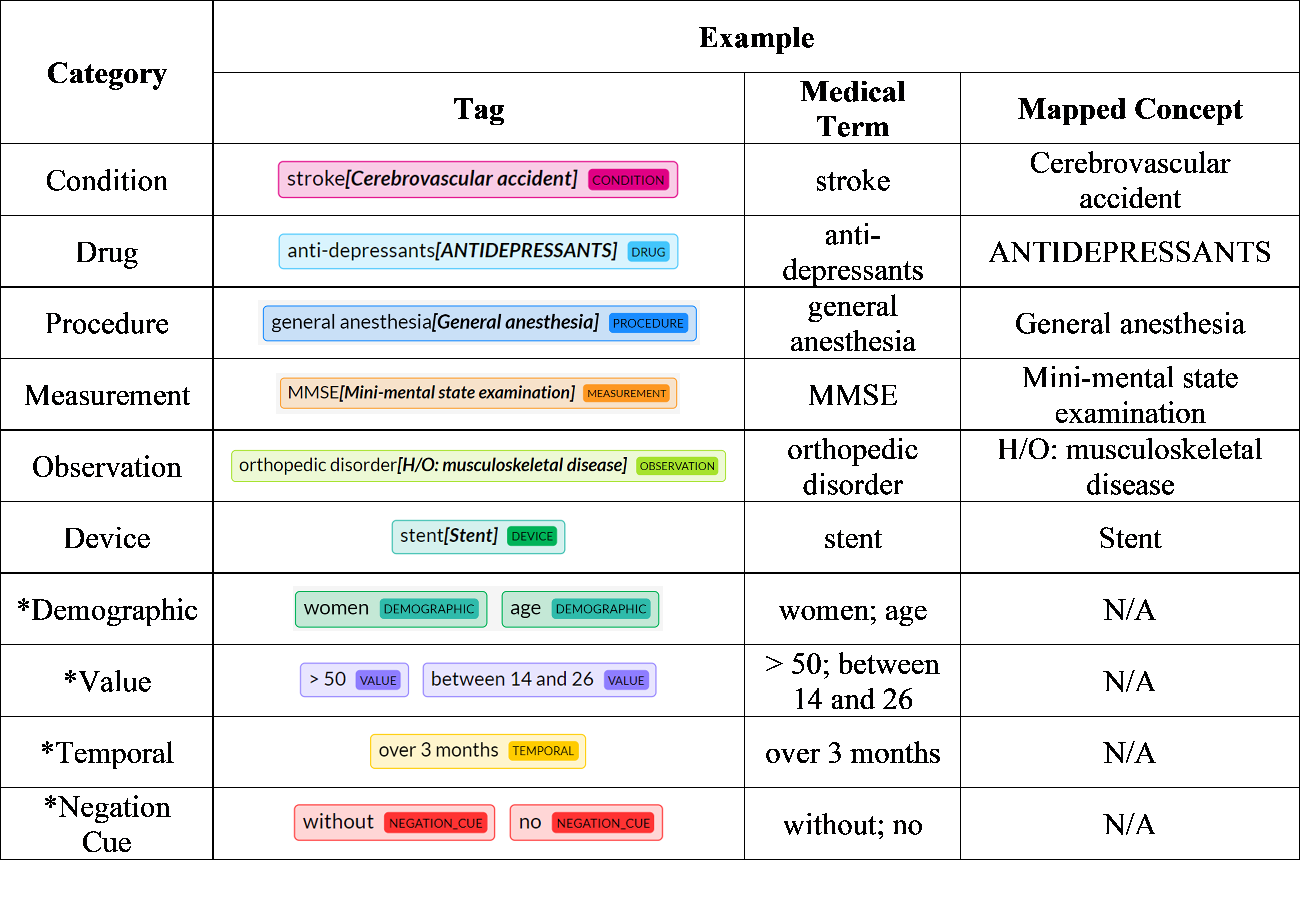
2. Medical terms recognized by the system are highlighted in different colored tags.
The color indicates the category of a medical term
(click to see examples)
.You can edit the parsing results by adding, updating, deleting, or clearing all tags.
3. Negation cue indicates the scope within a sentence where the phrase needs to be negated.
4. The system will analyze the sentence structure and automatically link concepts to their
corresponding
temporal terms
and the
measurement
to their corresponding
values
.
Add a Tag
Select the text you want and the annotation box will pop up.
Update a Tag
Move the mouse to the tag,
Method 1:
Right click the mouse and select the "update".
Method 2:
Window System: Press down Alt key and click the mouse
Mac System: Press down Option key and click the mouse
Delete a Tag
Move the mouse to the tag,
Method 1:
Right click the mouse and select the "delete".
Method 2:
Window System: Press down Ctrl key and click the mouse
Mac System: Press down Command key and click the mouse
Delete all Tags in a Paragraph
Click the button in the last column to delete all tags in a paragraph
if none of them are wanted. You can then add new tags to this paragraph.